Creating Media
How to create Image, Video, and Audio in Globist.
Once you are done writing prompts for your backgrounds and characters, it is time to transform those words into media.
Image Generation
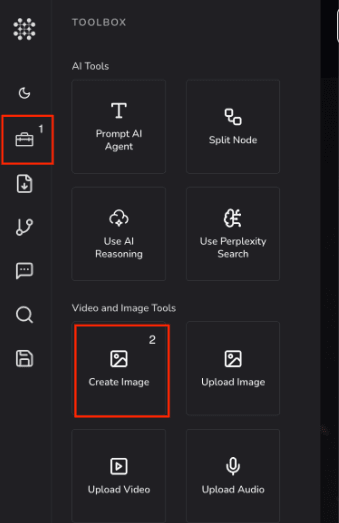
- To create an image click on the Toolbox button in the menu left side and Select Create Image as shown below.
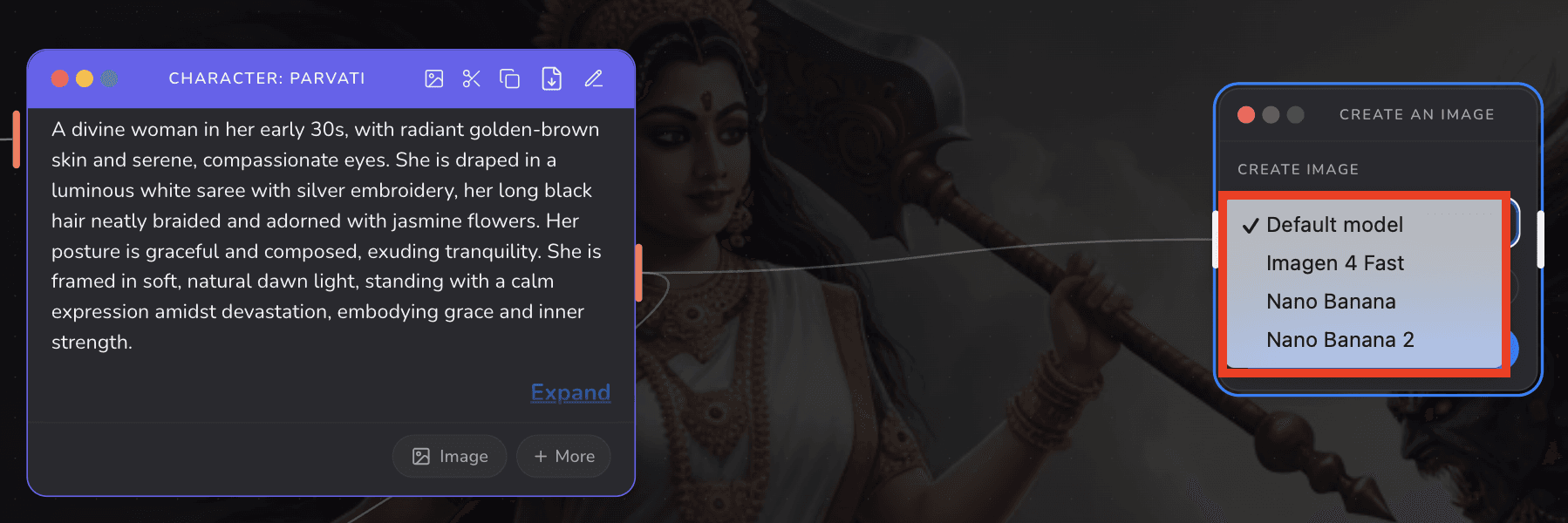
- Select one from the various image generation models from the drop-down menu as shown below. Also you can select image ratio as per your requirements (9:16 or 16:9). Click Run
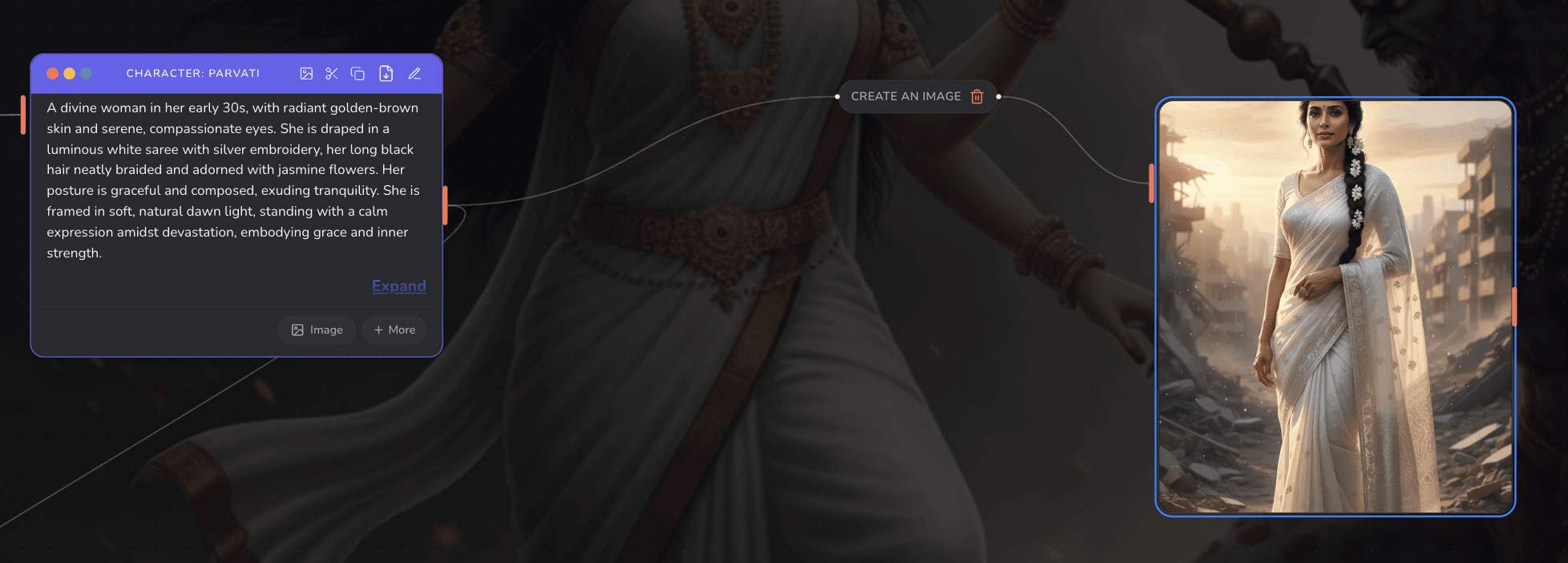
- Your image is generated.
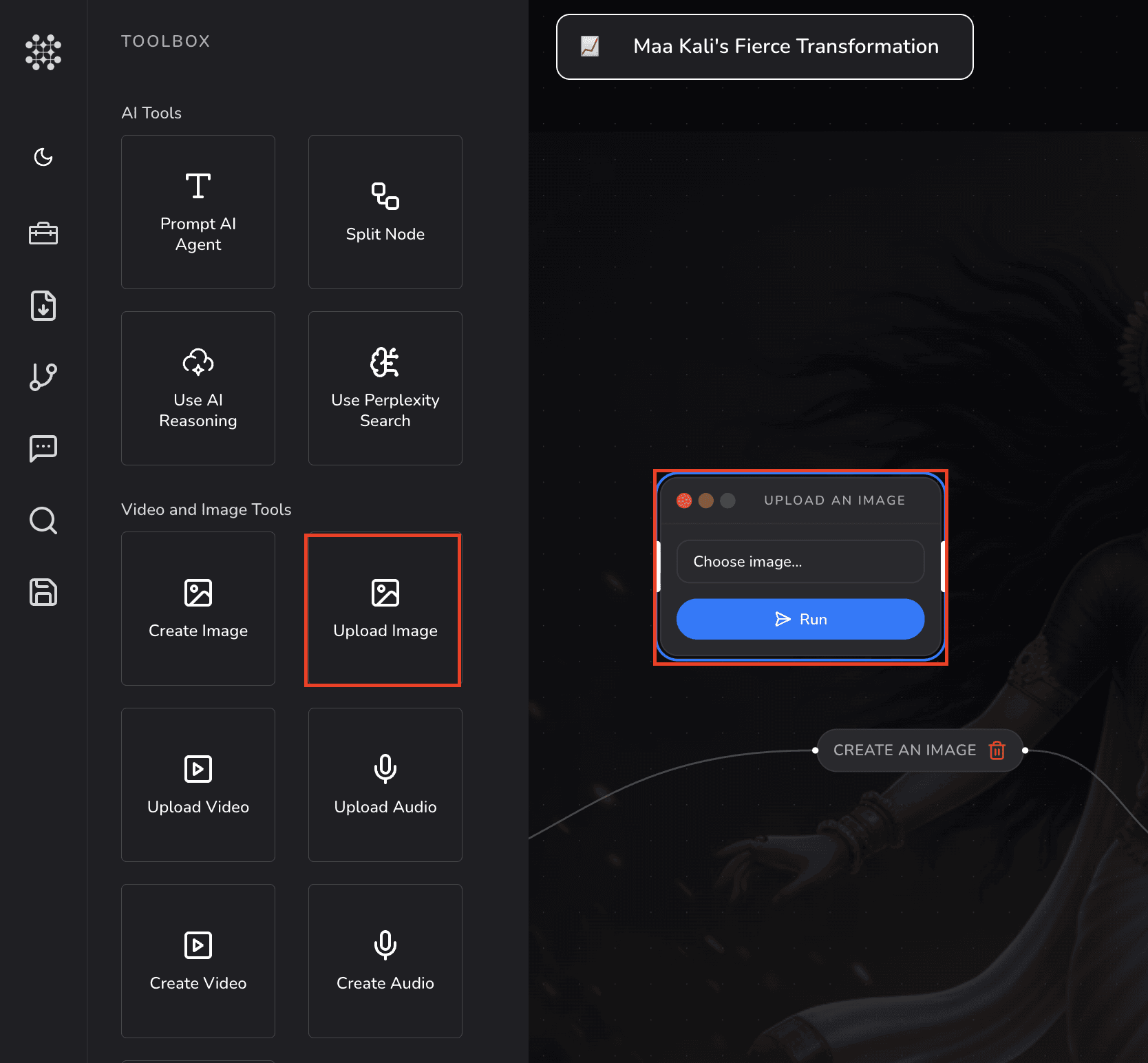
Uploading an Image Instead
You can also bring in your own images:
Toolbox → Upload Image → Choose image → Run
Video Generation
-
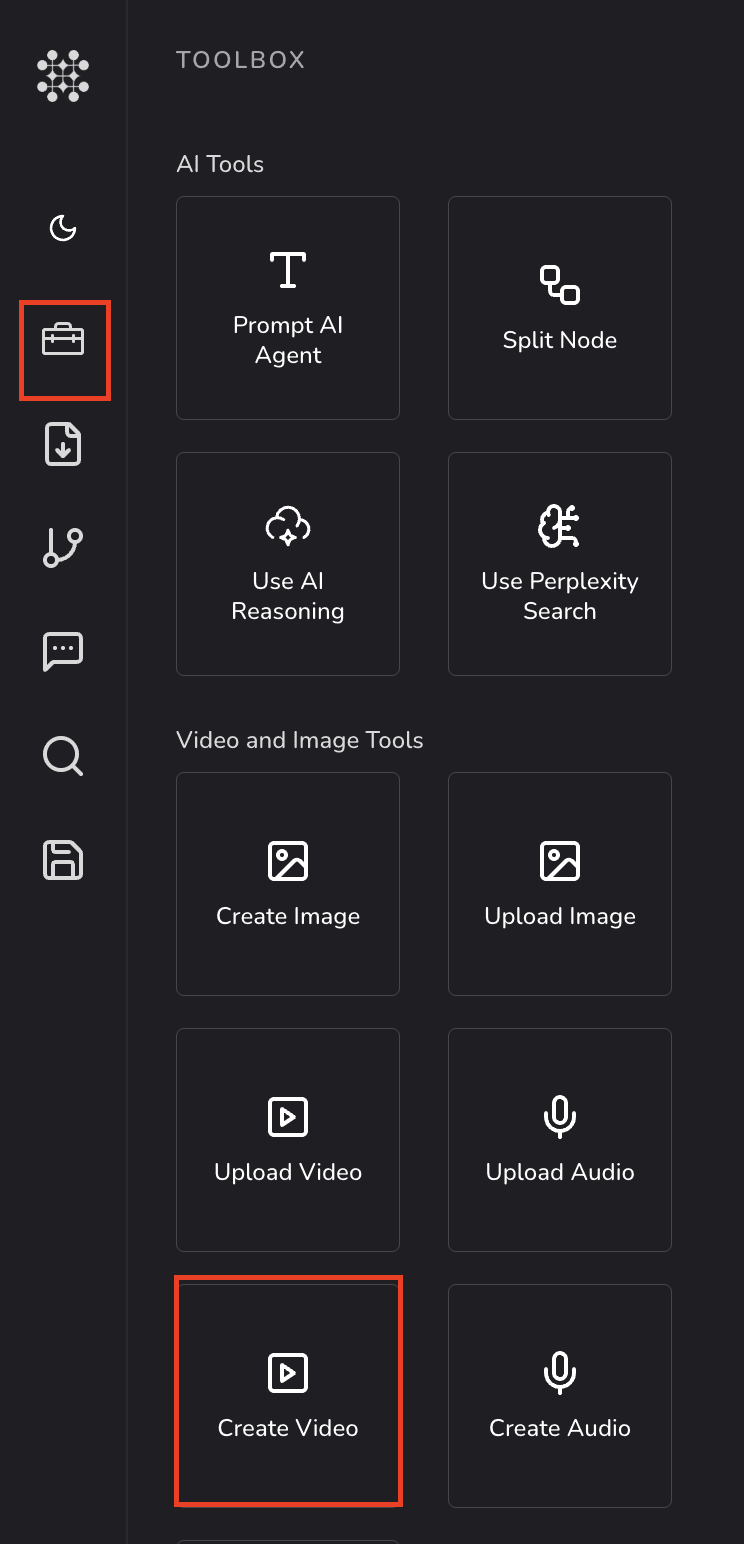
To create video Go to the Toolbox button in the menu left side and Select Create Video as shown below.
-
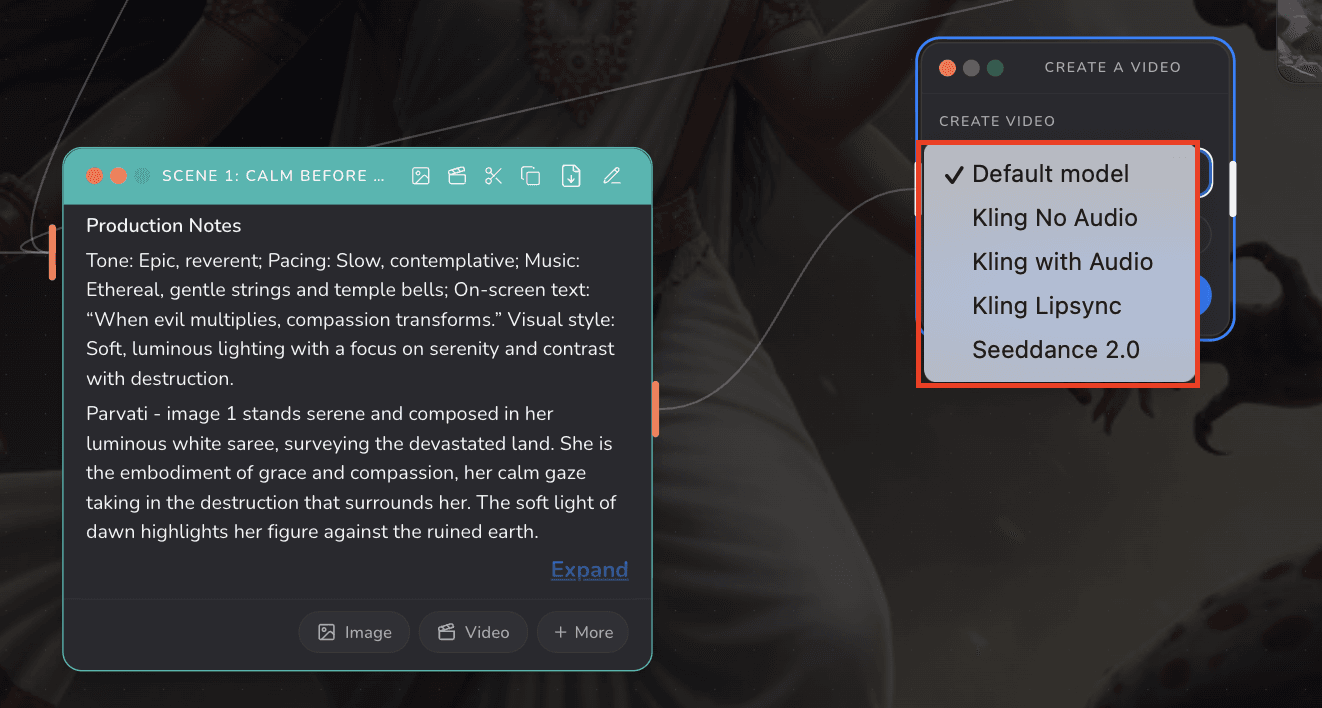
Select one from the various video generation models from the drop-down menu as shown below. Also you can select video ratio as per your requirements (9:16 or 16:9). Click Run.
Uploading a Video Instead
Toolbox → Upload Video → Choose Video → Run
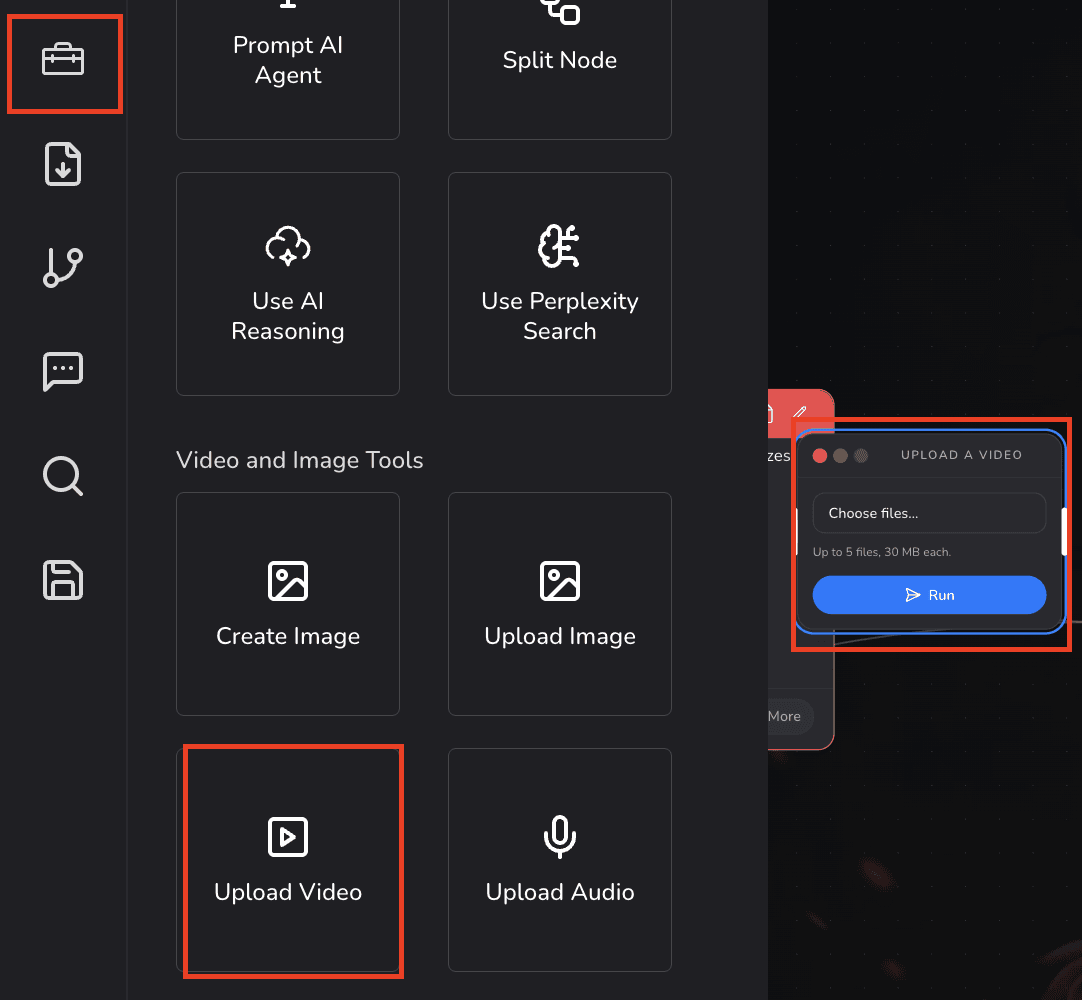
Upload supports up to 5 files, 30 MB each.
Audio Generation
-
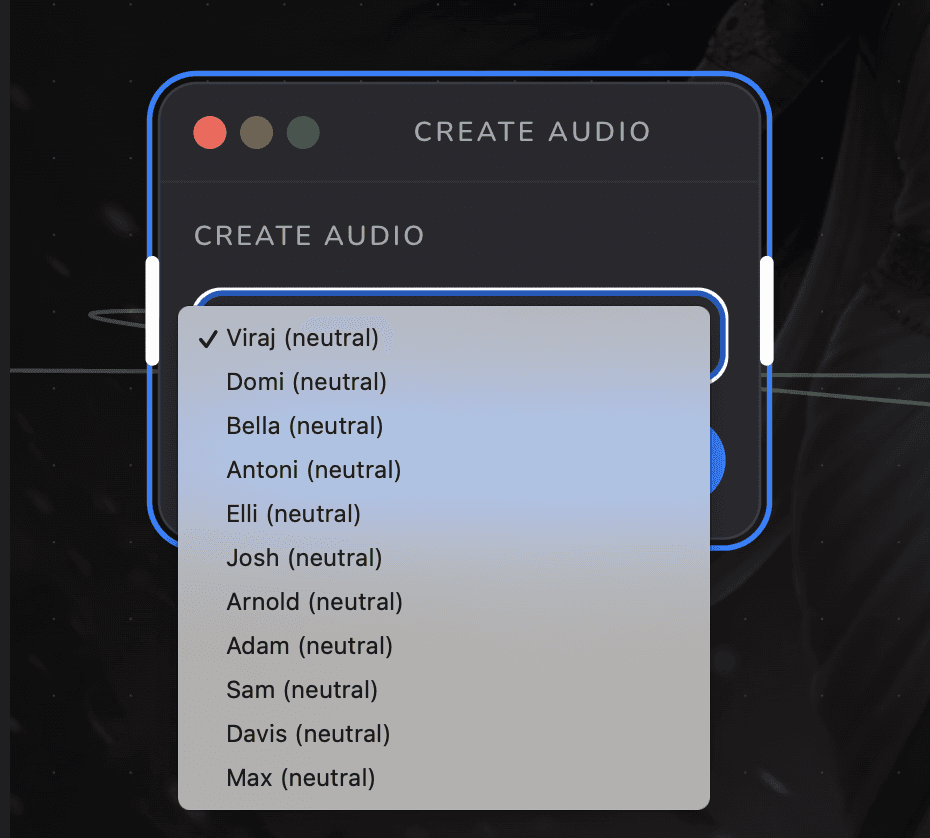
To create audio Go to the Toolbox button in the menu left side and Select Create Audio as shown below.
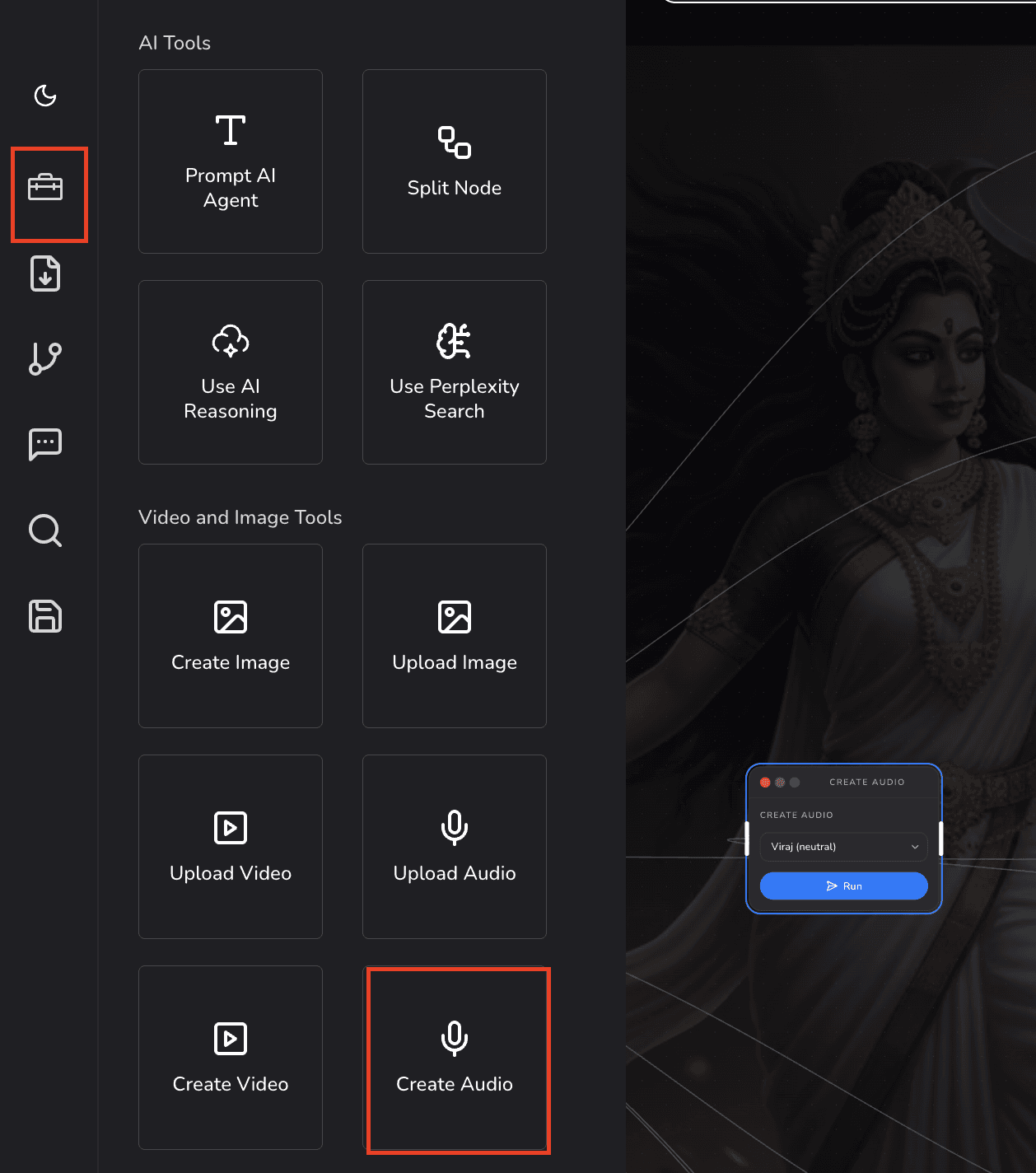
-
Select one from the various audio generation modals from the drop-down menu as shown below. Also you can select video ratio as per your requirements (9:16 or 16:9). Click Run.